As an Amazon Associate this site earns from qualifying purchases.
Specifications at a glance
| Model | Price | Stabilization | Tracking | Extension rod / tripod | Weight | Battery |
|---|---|---|---|---|---|---|
| DJI Osmo Mobile 7 Gimbal Stabilizer | Check price on Amazon | 3-axis | ActiveTrack 7.0 (DJI Mimo) | Built-in tripod | 300 g | Not stated |
| DJI Osmo Mobile 7P | Check price on Amazon | 3-axis | Native tracking via Multifunctional Module | Built-in extension rod + tripod | Not stated | Not stated |
| DJI Osmo Mobile 8 | Check price on Amazon | 3-axis, 360° pan | Native tracking, audio reception, lighting | Built-in extension rod + tripod | Not stated | Not stated |
| DJI Osmo Mobile 8 Standard Combo | Check price on Amazon | 3-axis, 360° pan | Native tracking, audio reception, lighting | Built-in extension rod + tripod | Not stated | Not stated |
| hohem iSteady X3 SE | Check price on Amazon | 3-axis (iSteady 8.0) | AI tracking + gesture control (Hohem Joy) | Not stated | 0.79 lbs | 11 hrs, 2-hr charge |
| COMITOK L7C Pro | Check price on Amazon | 3-axis | 9.0 AI face/object tracking + gestures | Not stated | 0.8 lbs | 2600 mAh, 80-min charge |
Quick answer: A smartphone gimbal is a motorized handle that cancels out your hand shake on three axes, so walking shots stop looking like security footage. Learning it takes about twenty minutes: balance the phone, power on, pick a mode (pan-follow for most things, lock for static shots), and then walk heel-to-toe with soft knees. The gear matters less than the technique — but a gimbal with a built-in tripod and reliable subject tracking removes most of the friction that makes people stop using theirs.
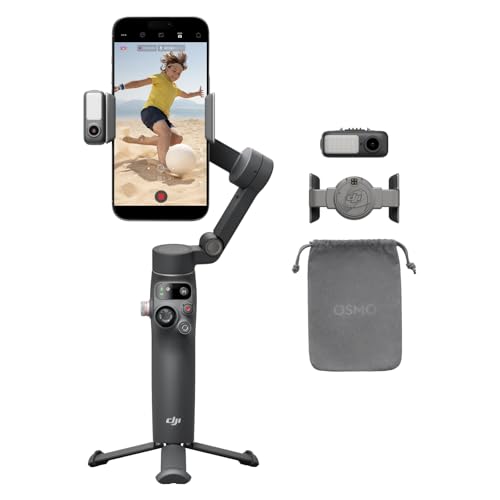
- Snap the Spectacular - The Multifunctional Module packs intelligent tracking, DJI Mic 2/DJI Mic Mini reception, and lighting features into one compact unit. Pair it with your
- Experience Seamless Stability - Osmo Mobile 7P's robust 3-axis gimbal stabilization ensures lossless stability. Capture creative bursts and craft stunning, cinema-quality
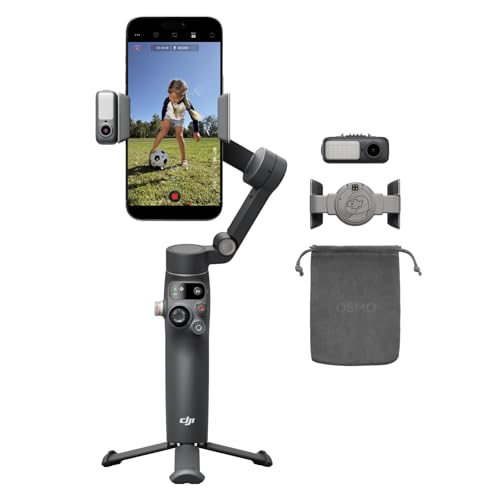
- Native Tracking With Audio [4] & Lighting [1] – Level up your shots with a DJI gimbal that combines tracking, audio reception [4], and lighting. Stay sharply in focus, well-lit
- Seamless 360° Pan Rotation – Enjoy 360° horizontal rotation for immersive shots. Intelligent tracking lets you follow subjects freely, and the built-in tripod/selfie stick adds
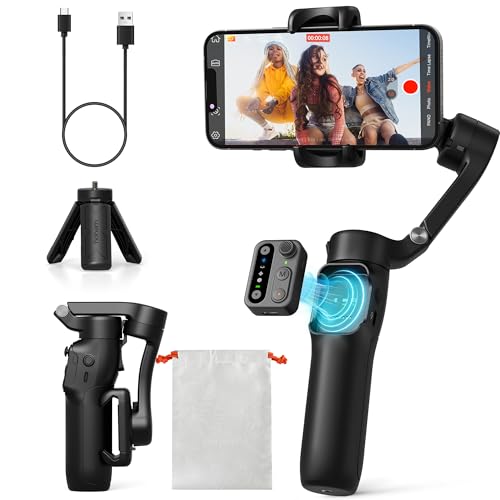
- Detachable Remote Controller: The hohem iSteady X3 SE Gimbal comes with a detachable magnetic remote, allowing you to effortlessly control selfies and videos from up to 32.81 feet
- Advanced iSteady 8.0 Technology: Featuring upgraded 3-axis stabilization, this phone gimbal ensures ultra-smooth footage, even when jogging or jumping. Perfect for action-packed
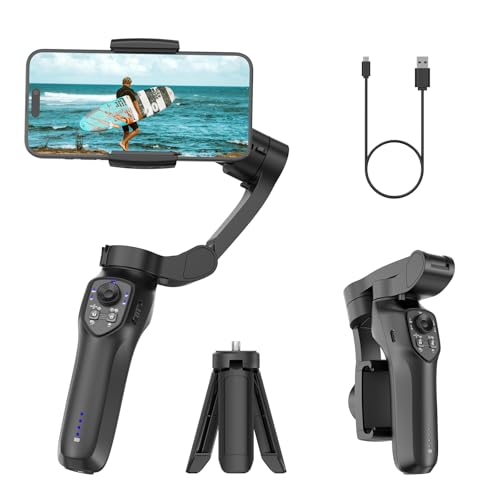
- [Upgraded 3-Axis Gimbal Stabilizer for Smartphone] Embark on a journey of capturing life's most cherished moments with the L7C Pro iPhone stabilizer, as its dynamic 3-axis
- [9.0 Intelligent AI Tracking] Discover a new realm of filming possibilities with the COMITOK L7C Pro gimble and its innovative Comitok app. Effortlessly navigate through various
The five-minute setup that fixes 90% of problems
1. Balance before you power on. Take off thick cases and pop-sockets, slide the phone into the clamp, and shift it left or right until it sits still with the motors off. An unbalanced phone makes the motors fight gravity all day — that's where the buzzing, drifting and dead batteries come from. Some newer models are designed to skip this: the COMITOK L7C Pro is listed as requiring no leveling, and the DJI Osmo Mobile 7P uses a magnetic mount so the phone snaps on in a fixed position.
2. Let it settle. Power on with the gimbal upright and still for two or three seconds. If it wakes up mid-swing, it can calibrate to a crooked horizon.
Finding the right how to use a smartphone gimbal comes down to matching the features to how you will actually use it.
3. Pick your mode. Pan-follow (yaw moves with you, tilt stays level) is the default for walking and following. Lock mode holds a fixed direction — use it for slow reveals and side-tracking shots. Full-follow lets tilt move too, which is what you want when you're walking up stairs or craning down toward something on the ground.
4. Learn the ninja walk. Bend your knees slightly, step heel-to-toe, and keep your elbows tucked. A gimbal kills rotation, not vertical bounce — your legs are the suspension.
5. Shoot in the app, not the native camera. Tracking, gesture control and the creative modes only work through the manufacturer's app (DJI Mimo, Hohem Joy, or COMITOK's app). Native camera works for plain stabilization, but you lose the smart features.
6. Use the tripod. Built-in tripod legs turn the gimbal into a hands-free tripod for talking-head shots and time-lapses, which is half of what people actually buy them for.
The starting point for most people
DJI Osmo Mobile 7 Gimbal Stabilizer for iPhone & Android, 3-Axis Gimbal
At $58.99, this is the model that covers the common case without asking you to think about accessories. It folds flat, has a tripod built into the handle, and weighs 300 grams — light enough that a long shoot doesn't turn into a forearm workout, which the anti-slip grip is designed around. Tracking runs through DJI Mimo's ActiveTrack 7.0, and Mimo's ShotGuides and One-Tap Edit are genuinely useful if you don't already have an editing habit: they hand you a shot list and a rough cut instead of leaving you with 40 clips and no plan.
What it doesn't have is an extension rod or the module-based audio and lighting features of the pricier models. If your shooting is "walk around, film the kid, film the street, film myself talking," that's not a loss.
Who it's for
- Anyone whose phone footage is fine when standing still and unwatchable when moving.
- Solo creators who need the phone to follow them while their hands are busy — tracking plus a tripod base replaces a second person.
- Travel and family shooters who want stabilization without carrying a bag of rigging.
- People who film vertical for social and want a horizon that stays level while they walk.
Who should skip it
- If your shots are mostly static — tripod, desk, locked-off product shots — a gimbal adds charging, balancing and folding for no benefit. Buy a tripod.
- If you already shoot on a recent flagship phone with strong in-body stabilization and you only ever film short handheld clips, the gain is smaller than the hassle.
- If you shoot with a heavy phone in a bulky case and refuse to remove it, check the payload limits first. The COMITOK L7C Pro, for example, specifies phones under 7 inches and up to 0.62 pounds.
- If you won't install the manufacturer's app, most of the value evaporates.
Honest trade-offs
Another thing to charge. A gimbal that's dead in your bag is worse than no gimbal. Battery specs are worth reading: the hohem iSteady X3 SE lists 11 hours from a 2-hour charge, and the COMITOK L7C Pro a 2600 mAh cell that charges in 80 minutes. Several DJI listings don't state runtime at all.
App lock-in. Tracking, gesture control and templates live in the vendor app. That means your editing and export path is partly decided by which gimbal you buy.
Feature creep costs money. The jump from the Osmo Mobile 7 at $58.99 to the Osmo Mobile 8 at $149.00 buys tracking with audio reception and lighting, plus 360° pan. Real features — but only if you'll use a mic and a fill light.
It's still a stick. Folded gimbals are pocketable in the "big jacket pocket" sense, not the "jeans" sense.
What to check on the listing before you buy
- Current price and which variant. There are two Osmo Mobile 8 listings here at $149.00 and $92.00 — combos and bundles differ, so read exactly what's in the box rather than assuming.
- Phone compatibility. Width, thickness with case, and weight limits vary by model.
- What "kit" or "combo" includes. Some bundles add a case, tripod or module; some don't.
- Warranty and return window on the specific seller, not just the brand.
- Reviews. Go read recent buyer reviews yourself, filtered to your phone model — clamp fit and app stability are the two things owners tend to flag, and they change between firmware versions.
DJI Osmo Mobile 7P Gimbal Stabilizer for iPhone & Android, Native Tracking — consider instead if…
…you want tracking that doesn't depend on the phone doing the work, plus audio. At $99.00 it adds a Multifunctional Module with intelligent tracking, DJI Mic 2 / DJI Mic Mini reception and a light, and it has a built-in extension rod and tripod. Unfolding powers it on, the magnetic mount takes the phone instantly, and Mimo opens on its own — the fastest path from bag to rolling.
DJI Osmo Mobile 8 Gimbal Stabilizer for Phone, 3-Axis Stabilization — consider instead if…
…you want the full current feature set at $149.00: native tracking with audio reception and lighting, 360° horizontal pan for continuous orbiting shots, direct phone connection for tracking, and a built-in extension rod and tripod that doubles as a selfie stick.
DJI Osmo Mobile 8 Standard Combo, Gimbal Stabilizer for Phone — consider instead if…
…you want the Osmo Mobile 8's tracking, audio and lighting features and 360° pan at $92.00. Same core capability set and the same built-in extension rod and tripod — check the listing carefully for what this combo includes versus the other Osmo Mobile 8 listing.
hohem iSteady X3 SE Foldable Phone Gimbal with Detachable Remote, Black — consider instead if…
…you film yourself from a distance. The detachable magnetic remote works up to 32.81 feet away, which solves group shots and solo filming without running back to the gimbal. At $51.98 and 0.79 lbs, with iSteady 8.0 stabilization, 11-hour battery and AI tracking plus gesture control in the Hohem Joy app.
COMITOK L7C Pro, Gimbal stabilizer for iPhone, Phone Stabilizer for Video Recording with Face/Object Tracking, 3-Axis Gimbal for Android & iPhone 15 Pro Max, Foldable Phone Gimbal Vlog Recording — consider instead if…
…you want to find out whether you'll actually use a gimbal before spending real money. At $29.99 it's 3-axis with face and object tracking, gesture control, no leveling required, 0.8 lbs, and folds to 6 × 4.3 × 1.8 inches. Confirm your phone is under 7 inches and 0.62 pounds first.
FAQ
Do I need to rebalance every time I use it? Only if you change something — case on or off, a new phone, a lens attachment. Otherwise the clamp keeps its position. Models with magnetic mounts, like the Osmo Mobile 7P, are designed to avoid the step entirely.
Why does my footage still bounce? Because a gimbal corrects rotation, not vertical travel. Bend your knees, shorten your stride, and roll heel-to-toe. Filming at a higher frame rate and slowing it slightly in the edit hides the rest.
Can I use a gimbal with the native camera app? Yes for basic stabilization. But subject tracking, gesture control, and the guided-shot and editing tools require the manufacturer's app — DJI Mimo, Hohem Joy, or COMITOK's app depending on the model.
Is the extension rod actually worth it? It's worth it if you shoot group scenes, wide travel shots, or high-angle establishing shots. The Osmo Mobile 7P, Osmo Mobile 8 and Osmo Mobile 8 Standard Combo all list a built-in extension rod; the Osmo Mobile 7 lists a tripod but no rod.
Related guides
- How To Set Up Stream Deck With Streamlabs Obs (2026)
- Best drones, gimbals and content creator gear - camera drones, smartphone gimbals, action cameras, ring lights and stream decks Industry Trends
- Best drones, gimbals and content creator gear - camera drones, smartphone gimbals, action cameras, ring lights and stream decks for First-Time Buyers
Key Takeaways
- Choosing the right how to use a smartphone gimbal means matching the key features to your specific needs and budget
- Read real customer reviews and check the return policy before you commit
- Compare value across models — the priciest option is not always the best fit