As an Amazon Associate this site earns from qualifying purchases.
Compatibility at a glance
| Product | Keys | Extra controls | Stated OS support | Price |
|---|---|---|---|---|
| Elgato Stream Deck MK.2 Studio Controller, 15 Macro Keys | 15 LCD | Not stated | Not stated | Check price on Amazon |
| Elgato Stream Deck +, Audio Mixer and Studio Controller | LCD keys (count not stated) | Touch strip and dials | Not stated | Check price on Amazon |
| Elgato Stream Deck Mini, 6 Customizable LCD Macro Keys | 6 LCD | Not stated | Not stated | Check price on Amazon |
| FIFINE AmpliGame Stream Controller (D6) | 15 LCD | RGB ring, 9 modes | Mac and PC | Check price on Amazon |
| SOOMFON Stream Controller Studio Control Deck | 15 LCD | Removable stand | Win 10 64-bit+, macOS 11.0+ | Check price on Amazon |
| VSDINSIDE Macro Keypad (M18) | 15 LCD + 3 physical | RGB ring, USB-C | Win 11+, macOS 11.0+, no native Linux | Check price on Amazon |
Quick answer: Plug the deck in, install its companion software, then connect that software to OBS or Streamlabs and to your Twitch account before you touch a single key. Most setup pain comes from skipping the OBS WebSocket step or from assigning scene switches by name and then renaming the scenes later. Budget about 40 minutes for a first pass, and expect to rearrange your keys twice in the first week.
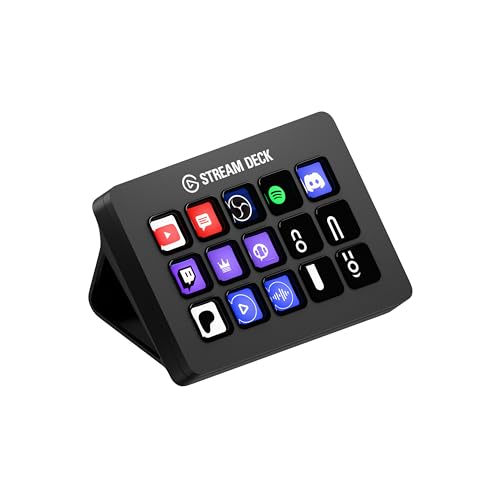
- One-Touch Operation: trigger single or multiple actions, launch social posts, adjust audio, mute mic, turn on lights, and much more
- Visual Feedback: know that your command has been executed
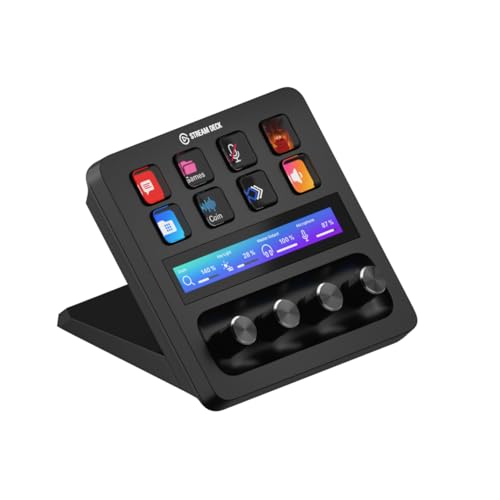
- Tactile Control, Visual Feedback: LCD keys, touch strip, and dials for audio, video, lighting, and more; Know that your command has been executed
- Fully Customizable: Use as an
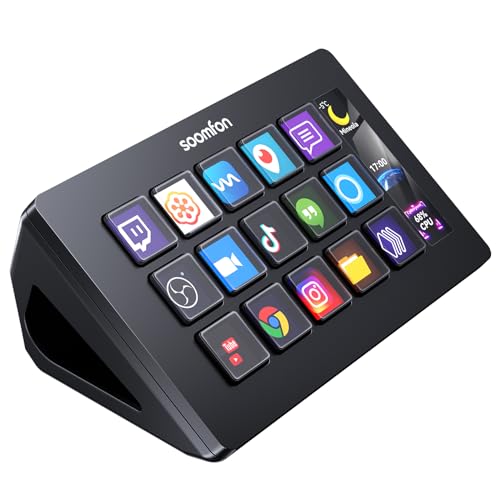
- 【Wide compatibility】Compatible with PC, Mac and leading software. We are compatible with Windows 10 64-bit or higher. MacOS is compatible with Big Sur 11.0 or higher. Integrated
- 【One-touch operation】You can easily launch social posts, adjust audio, mute the microphone, turn on lights, and more with the touch of a button. The Stream Controller is a handy
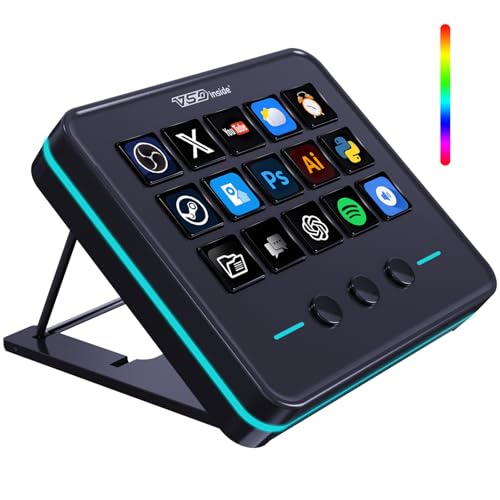
- Single Tap Control: This USB macro keyboard pad supports single tap commands for quick operation. Users can trigger pre-set macros, input text, open files and web pages, adjust
- One Tap Multi-Shortcut: This macro controller pad streaming deck supports multi-shortcut macro programming for gamers and content creators. Custom shortcuts simplify game combo
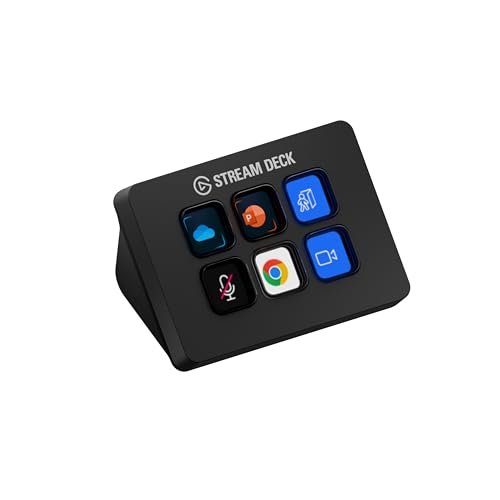
- Work smarter not harder: forget keyboard shortcuts. Stream Deck Mini lets you assign tedious, hard to memorise shortcuts to a single key. Instantly identify and activate them
- Compatible with your apps: Seamlessly integrate with essential software including Zoom, Teams, PowerPoint, Excel, Word, GoogleSuite, MS Office, Photoshop, Adobe Creative Apps
The setup, in order
1. Decide what you actually want on the keys before you plug anything in. Write down the five things you physically do most during a stream. For most people that's: swap to Starting Soon, swap to Gameplay, swap to Be Right Back, mute mic, and drop a chat command. Everything else is decoration. The gotcha here is that people open the software first and get seduced by the plugin store — you end up with 15 keys of Spotify controls and no BRB scene.
2. Connect over USB and let the software install first. These are USB devices, not Bluetooth, so cable routing matters — check your reach before you commit to a desk position. The VSDINSIDE Macro Keypad, Stream Controller Deck Gaming Streaming Shortcut Keyboard, 18 Programmable Keys Customizable Visual AI Pad USB Soundboard for OBS, YouTube, Desk Office Setup, Laptop, PC, Mac connects via USB-C. Gotcha: if the keys light up but the software says "no device," you've almost always got a charge-only cable or an unpowered hub in the chain. Go straight into a rear motherboard port for the first setup.
Finding the right how to set up a stream deck for twitch comes down to matching the features to how you will actually use it.
3. Update firmware and software before you build anything. FIFINE explicitly calls this out for the AmpliGame D6 — update both firmware and software before first use. This is not boilerplate. Building a full profile on stale firmware and then updating is how you lose a layout. Do it while the deck is empty.
4. Check your OS version against the device. This is the step that quietly kills weekends. The SOOMFON deck lists Windows 10 64-bit or higher and macOS Big Sur 11.0 or higher, with OBS Studio support at Windows 27.0/28.0+ and macOS 28.0+. The VSDINSIDE lists Windows 11 and newer, macOS 11.0 and newer, and states plainly that native Linux plug-and-play is not available. If you're on Linux, stop here and read the compatibility table below.
5. Install the OBS or Streamlabs plugin, then authorise it. The deck software doesn't talk to OBS by magic — there's a plugin, and in modern OBS there's a WebSocket connection with a password behind it. Install the plugin, then in OBS go to Tools WebSocket Server Settings, enable the server, and copy the password into the deck plugin's settings. Gotcha: OBS regenerates that password if you reset settings, and nothing warns you. Your scene keys will just silently do nothing.
6. Assign scene switches — and name your scenes properly first. Scene actions bind to the scene's name. Rename "Scene 2" to "Gameplay" after you've assigned it and the key breaks. Name every scene before you assign a single key. Elgato's Stream Deck MK.2 Studio Controller, 15 Macro Keys ships with OBS, Twitch, YouTube, Discord and Spotify plugins available, so you're pulling from a maintained list rather than hand-rolling hotkeys.
7. Log into Twitch inside the deck software for the Twitch-native actions. Scene switching lives in OBS. Starting/stopping the stream, changing your title and category, running an ad, creating a clip and firing a chat message live in the Twitch integration and need a separate OAuth login. Gotcha: that token expires. If your "create clip" key dies weeks later and everything else works, re-authorise Twitch.
8. Build one multi-action for going live. This is the single highest-value thing a deck does. One key: set title, set category, switch to Starting Soon, unmute mic, start stream. The MK.2 and the Stream Deck + both support triggering multiple actions at once or sequentially, and the Mini advertises multi-action sequences with precise timing. VSDINSIDE calls its version "Operation Follow" — multiple macro steps in custom order or simultaneous execution. Gotcha: without a delay step, the deck fires "start stream" before OBS has finished loading the scene. Put a 1–2 second delay between the scene switch and the go-live action.
9. Put icons on the keys that you can read at a glance, not pretty ones. The LCD keys accept your own images — VSDINSIDE accepts JPG, PNG and GIF including animations. Use flat colour blocks and one word. A gorgeous 6-colour icon is unreadable in peripheral vision while you're mid-fight.
10. Set up folders or profiles, then stop. Fifteen keys goes fast. Both the FIFINE D6 and VSDINSIDE support folders; Elgato's Stream Deck + adds Smart Profiles that switch configuration automatically depending on which app is in focus. Build your Twitch profile, use it for a week, then rebuild it. The second layout is always the good one.
What goes wrong
Keys light up, nothing happens in OBS. Symptom: Deck responds visually, OBS ignores it. Fix: OBS WebSocket is disabled or the password doesn't match. Re-enable, re-copy, restart both apps. Also confirm your OBS version clears the plugin's minimum — SOOMFON, for instance, lists OBS 27.0/28.0+ depending on platform.
Scene keys worked yesterday, dead today. Symptom: One or two keys fail, the rest are fine. Fix: You renamed a scene or a source. Reassign the key.
Twitch actions fail but OBS actions work. Symptom: Scene switching fine; title change, ad and clip keys throw errors. Fix: Twitch OAuth token expired or was revoked. Log out and back in inside the deck software.
Device not detected at all. Symptom: Software shows no hardware. Fix: Swap to a known data-capable cable, plug directly into the machine, and confirm your OS meets the stated minimum. Check firmware and software are both current — FIFINE specifically warns to update both before first use.
Multi-action fires out of order. Symptom: Stream starts on the wrong scene, or mic is still muted. Fix: Add explicit delays between steps.
Deck slides around when you jab at it. Symptom: You miss keys during fast moments. Fix: Angle matters more than you think. The SOOMFON ships with a removable stand and rubber feet on the base so it stays put flat or angled.
When the fix is a new one
Sometimes the setup problem is the hardware. If you've run out of keys, or you're on an OS the device never supported, no amount of reconfiguring helps.
Elgato Stream Deck MK.2 Studio Controller, 15 Macro Keys — the default Twitch integration path
Elgato Stream Deck +, Audio Mixer and Studio Controller — dials for live audio balance
Elgato Stream Deck Mini, 6 Customizable LCD Macro Keys — six keys, minimal desk footprint
FIFINE AmpliGame Stream Controller with 15 Macro Keys — plugin store plus RGB, cheaper entry
Fifteen macro keys with drag-and-drop setup, a built-in plugin and icon store, folders, and a nine-mode RGB ring, working with OBS Studio, Streamlabs, Twitch and YouTube. Details on the FIFINE AmpliGame Stream Controller with 15 Macro Keys, Streaming Keyboard with Trigger Actions in OBS/Twitch/YouTube/Streamlabs, Shortcut Buttons Keypad Works with Mac and PC-D6 listing.SOOMFON Stream Controller Studio Control Deck 15 Macro Keys and Dashboard — explicit OS and OBS version floors
VSDINSIDE Macro Keypad — three extra physical buttons beyond the LCDs
FAQ
Do I need OBS, or can the deck control Twitch directly? Both, and they're separate. Scene switching happens through the OBS or Streamlabs plugin. Changing your stream title, running ads and creating clips happens through the Twitch integration, which needs its own login. Set up both.
How many keys do I actually need for Twitch? Six covers a solid core layout. Fifteen gives you room for folders and a second page of alerts and sounds. Beyond that you're mostly buying dials — which the Stream Deck + provides — rather than more keys.
Will a non-Elgato deck work with Twitch and OBS? The FIFINE D6, SOOMFON and VSDINSIDE decks all list OBS, Streamlabs and Twitch support in their own software. What differs is plugin depth and update cadence, so read recent owner reviews yourself before committing.
Does the RGB ring matter? Only cosmetically. The FIFINE D6 has nine RGB modes and VSDINSIDE has an auto-cycling ring; neither affects what the keys do. The LCD icons are the functional part.
Related guides
- The Best Ring Lights for Streaming in 2026
- Best Options for Best drones, gimbals and content creator gear - camera drones, smartphone gimbals, action cameras, ring lights and stream decks
- Why Rates Vary for Best drones, gimbals and content creator gear - camera drones, smartphone gimbals, action cameras, ring lights and stream decks
Key Takeaways
- Choosing the right how to set up a stream deck for twitch means matching the key features to your specific needs and budget
- Read real customer reviews and check the return policy before you commit
- Compare value across models — the priciest option is not always the best fit